 Account and Billingless than a minute read
Enabling Two Factor Authentication (2FA)
Learn about Enabling Two Factor Authentication (2FA) for VPS, Dedicated Servers, and Game Hosting on Atomic Networks services.

Atomic Networks Staff
How to Enable Two-Factor Authentication (2FA) - Atomic Networks
Enabling 2-factor authentication (2FA) adds an extra layer of security to your client account. Adding 2FA requires a second form of verification, usually a unique code sent to your mobile device in addition to your password. This helps protect your account from unauthorized access, even if your password is compromised. Enabling 2FA through the panel can be done in a few steps…
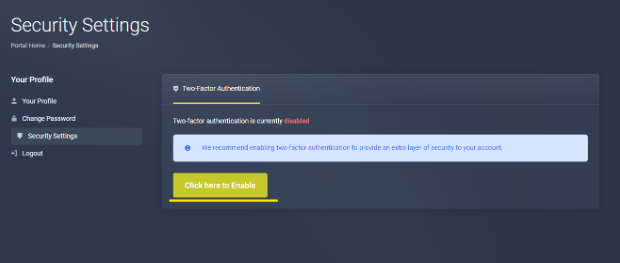
Step 1: Navigate to “Security Settings” on the Client Dashboard.
Step 2: Enable 2-Factor Authentication with Duo/Authenticator
- Enable Two-Factor Authentication
- Download Authenticator or Duo on Your Phone
Google Authenticator - App Store Link - Play Store Link
Duo - App Store Link - Play Store Link
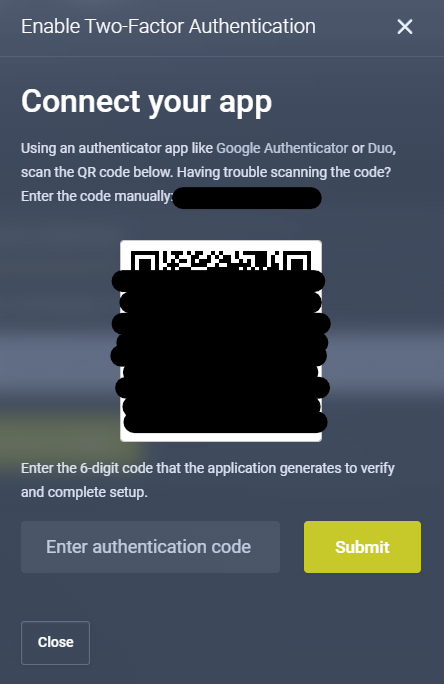
- Connect Your Authenticator to Your Client Account