
 Garry's Modless than a minute read
GMod - Auto Download Addons
Learn about how to setup automatic workshop downloading for addons on your GMod server with Atomic Networks.

Step 1: Navigate to Atomic Panel
Click here to navigate to Atomic Panel. You can log in using your account credentials that you received following checkout. The credentials email is sent to the email address on file in the Billing Panel.
Step 2: Navigate to the File Manager Tab Under Management
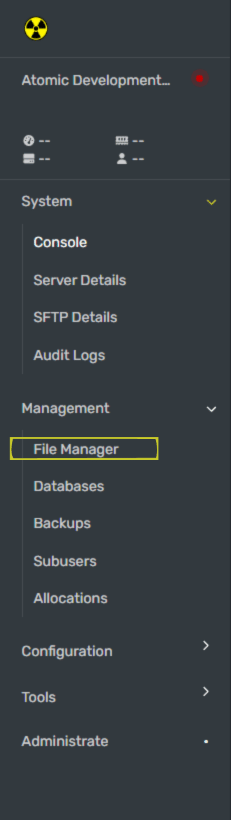
Navigate to garrysmod/lua/autorun/server in the File Manager. Create a new file in the server folder called resource.lua This is where you will choose which addons you want players to download automatically on connect.
Step 3: Add The Workshop IDs for the Addons You Want Players to Download on Connect
Now we will be grabbing the Workshop IDs of all the addons you want to add. On the Workshop Collections page, right click anywhere and select "Copy Page URL"
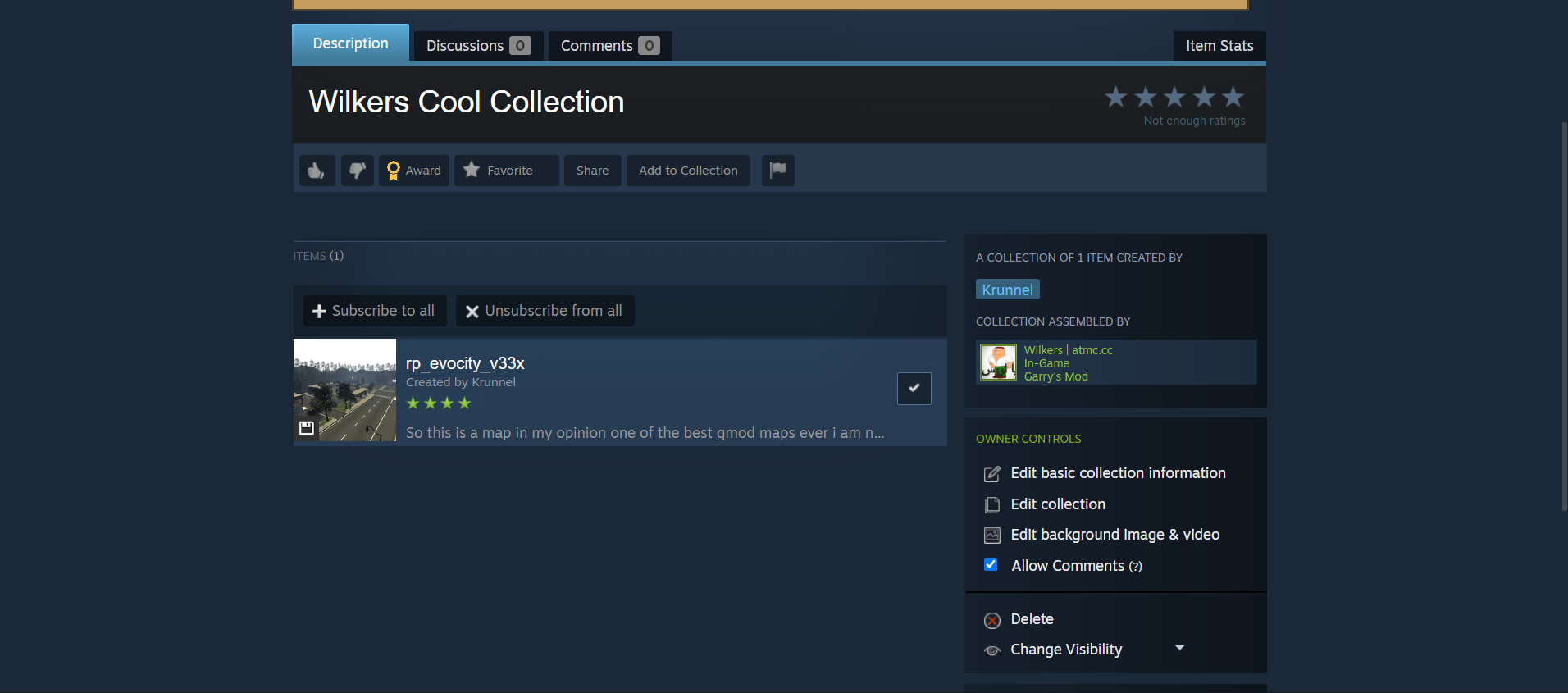
Go to YourDevTools and paste your Workshop ID into the text box.
Example: When doing this step, https://steamcommunity.com/sharedfiles/filedetails/?id=2901076879 becomes 2901076879. 2901076879 is the workshop ID in this example.
Generate your code, copy the code, then paste the code into the resources.lua file that was created in Step 2.
Step 4: Restart Your GMod Server
Once you have configured your auto downloaded workshop addons, restart your GMod server for the workshop addons to work.
If you're following along with our how to make a GMod server guides, you are all done with the required setup! You can now proceed to our gamemode setup guides. Additionally, you can also read more in our "Optional Setup" section if you want to learn more about running a GMod server the right way.