
 Garry's Modless than a minute read
How to Change Map on GMod Server
Learn about how to find, add, and change the map on your GMod server with Atomic Networks.

Adding a map to your GMod server is one of the first steps to creating a custom server. Follow the steps below to add a map to your GMod server.
Step 1: Find the Map You Want to Add
To change maps on a GMod server, you must find a map on the Steam Workshop and add it to your collection. If you do not know how to do this, follow our guide on how to add workshop addons to a GMod server for help. Once you have added your map to your workshop collection, proceed to the next step.
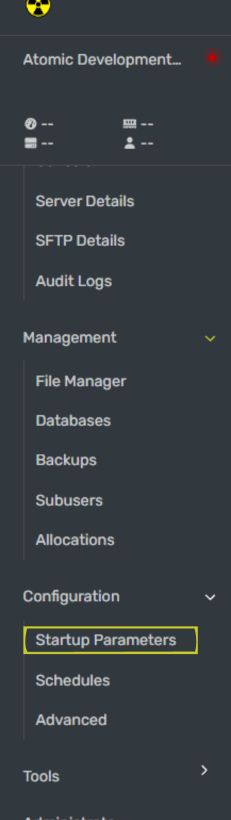
Step 2: Navigate to the Startup Parameters Tab Under Configuration
Step 3: Set Your Map Name
In the Startup Parameters tab, enter the name of your map in the Map field. You can find the name of your map by looking at the individual workshop addon for the map you added to your Workshop collection in Step 1.
Step 4: Restart Your GMod Server
Once you have added your workshop collection, restart your GMod server for the workshop addons to work.
If you're following along with our how to make a GMod server guides, you can go to the next guide.