
 Garry's Modless than a minute read
How to Make a Private Server in GMod
Learn about how to setup automatic workshop downloading for addons on your GMod server with Atomic Networks.

Until you are ready to launch, or if you only want certain people to play, it's always a good idea to make a GMod private server. This way, people that you don't want to see your server won't be able to connect. To make a GMod server private, follow the steps below.
Step 1: Navigate to Atomic Panel
Click here to navigate to Atomic Panel. You can log in using your account credentials that you received following checkout. The credentials email is sent to the email address on file in the Billing Panel.
Step 2: Navigate to the File Manager under Management
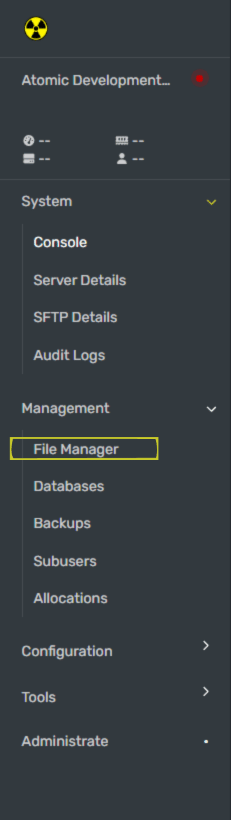
In the file manager, navigate to the pathway called /home/container/garrysmod/cfg/server.cfg
Step 3: Set sv_password in the server.cfg File - Put a Password on a GMod Server
You will find your password in the config file. The hostname is the name that you set for your server. If you have not edited your server.cfg file yet, you will find this variable around Line 5 of the server.cfg file. Do not delete or remove the Quotation Marks (" ") when setting your server name.
We recommend at least 10 characters with a random mix of letters and symbols. Use passwords between the range of 16-32 characters as best practice. Click here for a link to an offline password generator.
Step 4: Restart Your GMod Server
Once you have configured your GMod server to be private, restart your server.