 Garry's Modless than a minute read
How to Remove GMod Addons
Learn about how to setup automatic workshop downloading for addons on your GMod server with Atomic Networks.

Step 1: Navigate to Atomic Panel
Click here to navigate to Atomic Panel. You can log in using your account credentials that you received following checkout. The credentials email is sent to the email address on file in the Billing Panel.
Step 2: Navigate to the Workshop Cache
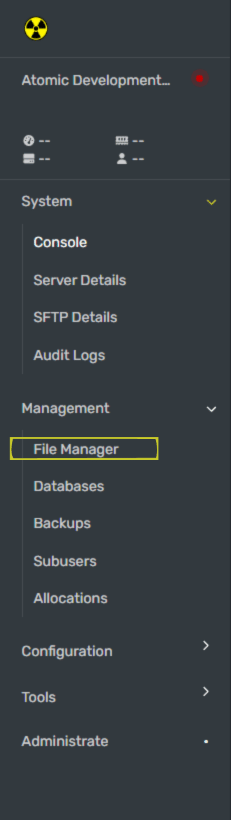
Navigate to garrysmod/cache/srcds in the File Manager. This folder contains the information for your server's GMod workshop addons.
Step 3: Copy the Workshop ID for the Addon You Want to Remove
On the page for the addon you want to remove, Right Click and Copy Page URL
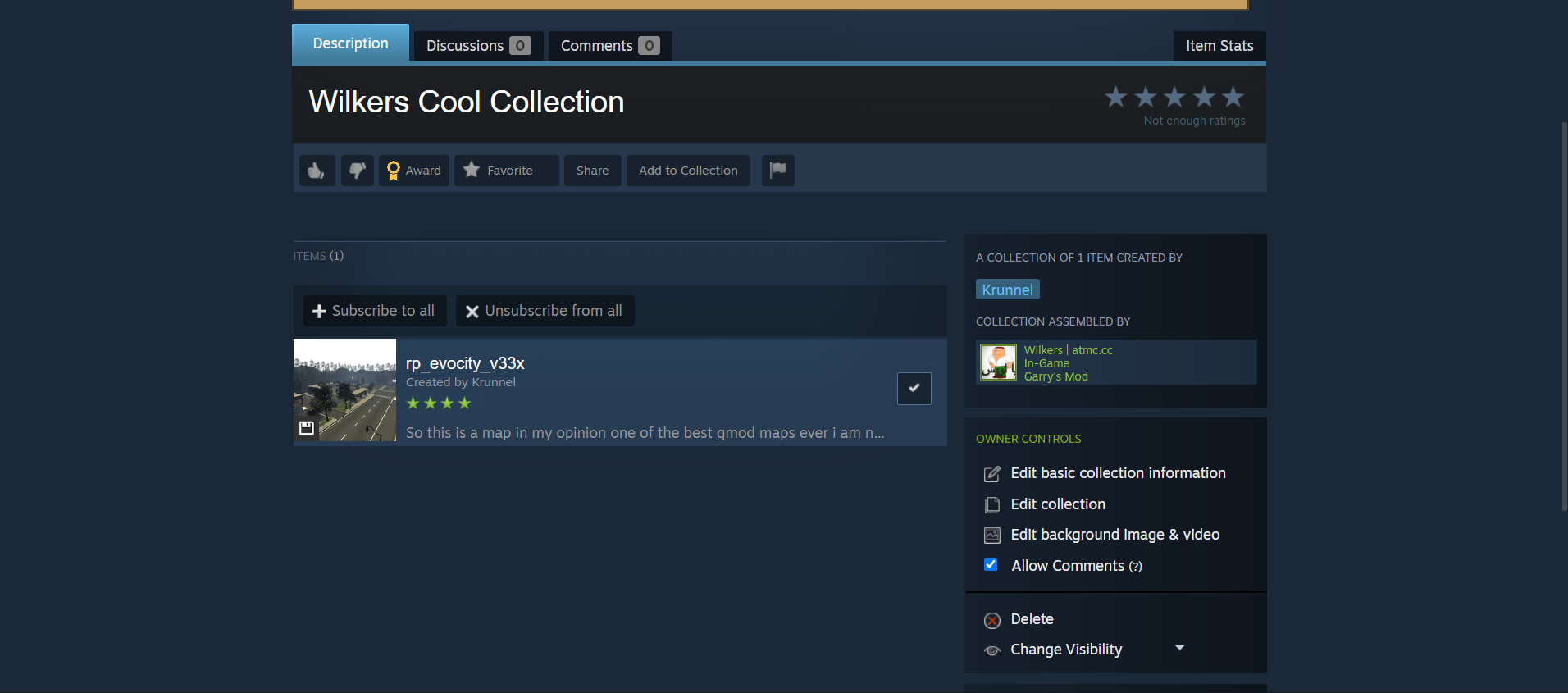
Paste your link anywhere and take out the Workshop ID.
Example: When doing this step, https://steamcommunity.com/sharedfiles/filedetails/?id=2901076879 becomes 2901076879
Copy the Workshop ID that has been removed from the link. (2901076879 in the example)
Step 4: Delete the File Named After the Workshop ID
- Press Ctrl + F
- Paste the workshop ID you collected in Step 3 into the search bar.
- Delete the file in
garrysmod/cache/srcdsthat is named after the Workshop ID you just pasted into the search bar.
Step 5: Remove the Addon From Your GMod Workshop
Navigate to the Steam Workshop page. Scroll down and navigate to Your Workshop Files. Click on Collections in the top bar, select the collection you created for your GMod server.
Once you have navigated to your GMod Workshop Collection, click Edit Collection on the right side of your screen.
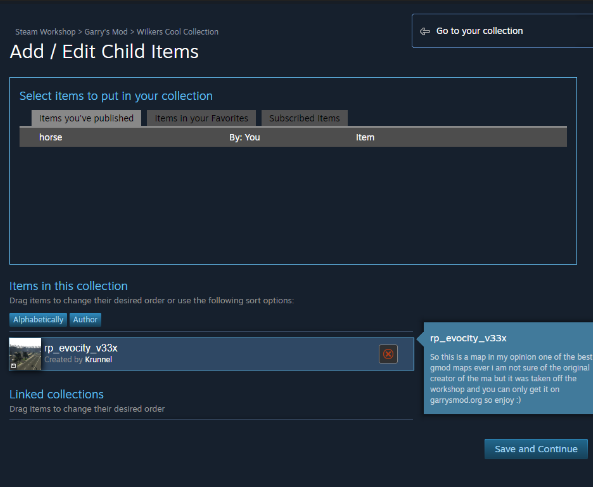
If done correctly, you will have a page open that looks like this.