
 Garry's Mod2 min read
How to Setup GMod GSLT Token
Learn about how to change the name of your GMod server on an Atomic Networks service..

What is a GSLT Token? Why do I need one for my GMod server?
Configuring your GSLT Token for your GMod server is one of the most important steps in setup. By configuring your game server Account Token, you are associating your GMod server with your Steam Account. Linking your server to an account on Steam sends a social signal to Valve and Facepunch that your server is managed by someone that actually plays GMod and is an authentic user.
As a reward for associating your account with your server, your GMod server will automatically rank higher in the server rankings, making it easier for players to find you. Alongside our special Anycast DDOS protection, this will give you the best chance for players to find your server.
Servers without a GSLT suffer a major ranking penalty in the server browser. If you do not setup a GSLT token, your server will almost always be at the bottom of the server list, making it nearly impossible to get players.
To setup a GSLT token on your GMod server, follow the steps below.
Step 1: Navigate to Atomic Panel
Click here to navigate to Atomic Panel. You can log in using your account credentials that you received following checkout. The credentials email is sent to the email address on file in the Billing Panel.
Step 2: Navigate to the Startup Parameters Tab Under Configuration
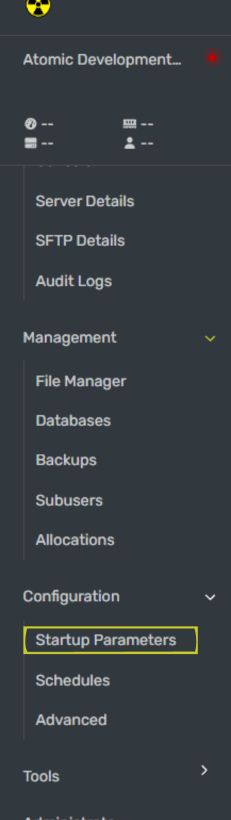
Step 3: Generate a GSLT Token for Your GMod Server
To generate a GSLT Token for your GMod server, follow the steps below.
- Navigate to the Steam Game Server Account Management page.
- Sign into Steam.
- Create your token. Set the App ID to "4000", this will create a token for your GMod server.

Step 4: Paste New Token in Atomic Panel
Once your token is generated, copy the token from the Login Token part of the page and paste it into the Steam Gameserver Account Token (GSLT) textbox inside of the Startup Parameters window you navigated to in Step 2. If done correctly, your server will now rank higher on the list.

Step 5: Restart Your GMod Server
Once you have set the GSLT token, restart your GMod server for the GSLT token status to be updated.
Congratulations, you just took the first step to making your GMod server! If you're following along with our how to make a GMod server guides, you can go to the next guide.